
Calendly automation with Zapier: Transform scheduling into a time saving machine
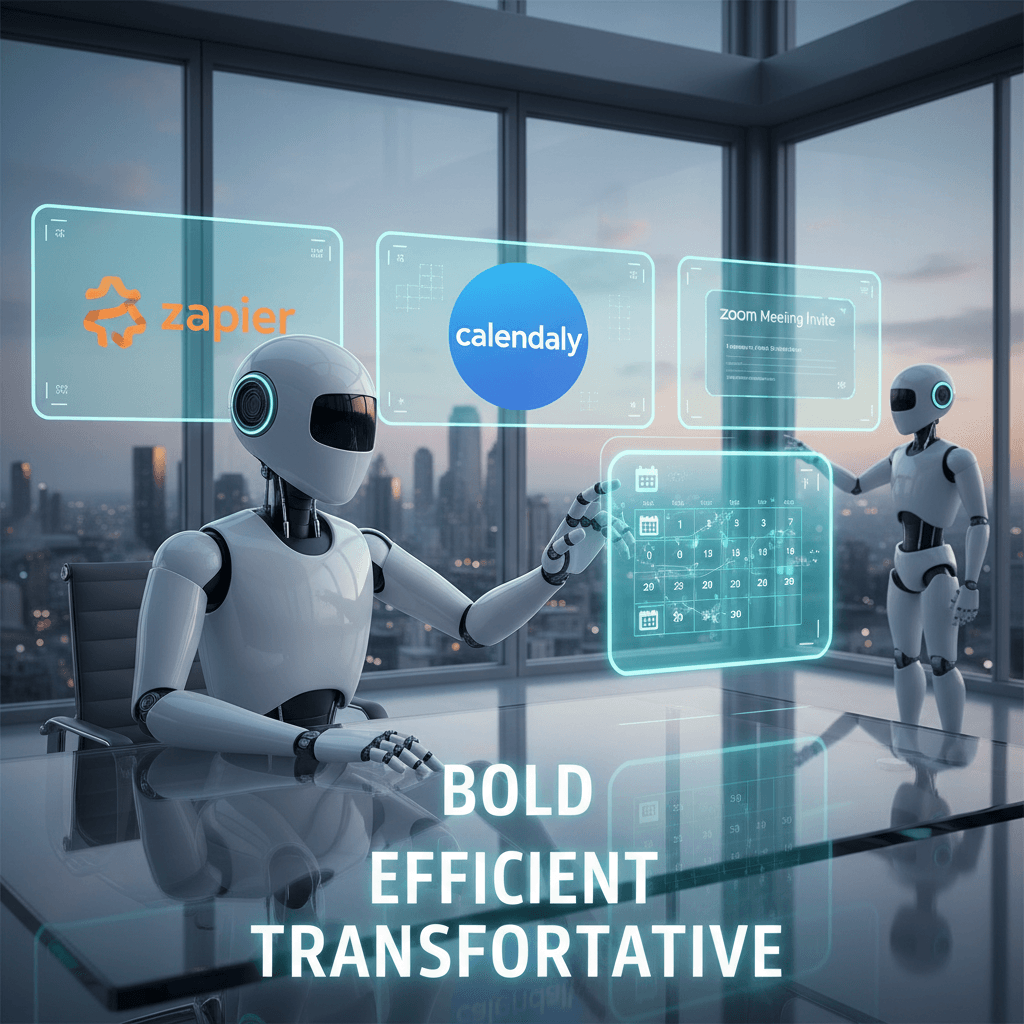
Calendly automation with Zapier unlocks fast, reliable scheduling across your apps. Imagine fewer double bookings, fewer no shows, and instant follow up. Because Zapier connects Calendly to thousands of apps, you can automate calendar sync, CRM updates, and reminders. As a result, teams save hours each week and reduce manual errors.
Hooked yet? Because simple automations scale fast, you will reclaim time for higher value work. For example, you can auto create Google Calendar events, add leads to your CRM, send personalized confirmation emails, and log meeting data to spreadsheets. Moreover, Zap templates make setup quick, and Zapier Copilot can suggest automation ideas.
In short, integrating Calendly with Zapier boosts scheduling efficiency, improves lead qualification, and cuts administrative busy work. Therefore, whether you run sales calls, interviews, or support sessions, automation keeps your calendar organized and your teams focused. Ready to see what automation can do for your schedule? Read on to learn practical Zaps and step by step workflows.
Calendly automation with Zapier: Connect Calendly to apps and automate follow-up
Zapier links Calendly to thousands of apps, so scheduling no longer feels manual. For example, you can trigger actions from new Calendly bookings and then update CRMs, send messages, or log data. Because the platform uses simple triggers and actions, teams set up workflows in minutes. Learn more at Zapier and Calendly to see integrations and templates.
How it works
Create a Zap that watches Calendly for new events. Then map fields to actions in other apps. Moreover, Zap templates and Zapier Copilot speed configuration. As a result, repetitive tasks vanish and your calendar stays accurate.
Common automation use cases
- Calendar syncing: Auto create Google Calendar or Outlook events to avoid double bookings.
- Lead capture: Send new invitee details to your CRM or Google Sheets for follow up.
- Notifications and reminders: Send SMS, Slack, or email reminders before meetings to reduce no shows.
- Personalized follow-up: Trigger tailored thank you emails or post-meeting surveys automatically.
- CRM enrichment: Add meeting notes, tags, or lead scores to Salesforce or HubSpot.
- Data logging: Append meeting metadata to Google Sheets for reporting and analysis.
Tools and extensions
You can combine Calendly Zaps with other automation solutions. For instance, use AI Bots (AllosAI Bots) to draft follow-up messages. Or use AI Chat (AllosAI Chat) to summarize call notes. Therefore, automation extends across sales, support, and recruiting workflows.
In short, integrating Calendly with Zapier simplifies scheduling, scales follow-up, and frees time. Consequently, teams focus on high value work, not calendar chores.
Quick comparison: Calendly automation with Zapier versus manual scheduling
| Aspect | Calendly automation with Zapier | Manual scheduling |
|---|---|---|
| Benefits | Automated confirmations, CRM sync, fewer no-shows, consistent follow-up | Direct control, personalized touch, no setup required |
| Efficiency | High — triggers run instantly and in parallel, reducing delays | Low — sequential manual steps create bottlenecks |
| Ease of use | Moderate to easy — prebuilt Zap templates simplify setup | Very easy to start but time intensive at scale |
| Error rates | Low when configured — fewer typos and missed updates | Higher — human error and double bookings are common |
| Time savings | Significant — saves hours weekly and scales with volume | Minimal — consumes staff time as bookings grow |
As a result automation handles routine work, and manual methods serve complex exceptions.
Advanced tips for Calendly automation with Zapier
Use these advanced tips to get more from Calendly automation with Zapier. First plan your workflows before building. Then break complex processes into smaller Zaps and test each step. Because small tests reveal mapping errors early, you save debugging time.
Multi-step workflows and conditional logic
- Use multi-step Zaps to chain actions, and add filters or paths to handle different outcomes. For example, send a different follow-up if the invitee is a new lead, or skip steps for internal meetings. Moreover Zapier Paths let you route automation based on invitee responses.
- Add delays before follow-up messages to avoid overwhelming contacts, and use the Delay action when needed.
CRM integration best practices
- Map Calendly fields to CRM fields precisely to avoid bad data. For instance, map full name to the CRM name field and email to contact email.
- Use unique identifiers like email to prevent duplicate contacts, and add tags to classify meeting types. As a result your sales and support teams get clean records.
- Keep the CRM update step idempotent so repeated Zaps do not create duplicates.
Automating reminders and no-show prevention
- Send multi-channel reminders by combining email, SMS, and Slack notifications. Because reminders reduce no-shows, schedule them 24 hours and one hour before meetings.
- Use attendee timezone data from Calendly to send reminders at the correct local time.
Testing, monitoring, and error handling
- Test each Zap thoroughly and enable Zap history to view runs. If a Zap fails, Zapier shows the error and payload. Then fix mapping or permission issues and re-run.
- Add fallback steps that notify an admin when critical actions fail, therefore preventing lost leads.
Performance, privacy, and scaling
- Rate limit long-running Zaps and batch updates to Google Sheets or CRM to reduce API calls. However prioritize real-time updates for high-value meetings.
- Mask or avoid storing sensitive meeting data in public sheets to protect privacy and compliance.
Leverage AI and helper tools
- Use AI Bots to draft follow-ups and personalized messages automatically. Try AI Bots at Allosai for better messaging.
- Use AI Chat to summarize call notes and append them to records. Learn more at Allosai for automated summaries.
Resources
- See Calendly integration options at Zapier Calendly Integrations for prebuilt templates and examples.
- For general Zapier guidance visit Zapier.
Follow these practices to scale scheduling automation, reduce errors, and free up team time.
Conclusion
Calendly automation with Zapier turns repetitive scheduling work into a smooth, reliable system. By linking Calendly to CRMs, calendars, messaging tools, and sheets you cut manual steps, reduce errors, and ensure consistent follow-up. Because Zaps run automatically, teams reclaim hours and can focus on higher-impact tasks like closing deals or improving customer experience.
AllosAI as a force multiplier
AllosAI adds AI driven capabilities that deepen automation beyond basic Zaps. For example AI Bots can draft personalized follow-ups, and AI Chat can summarize calls for faster record keeping. Moreover AllosAI integrates with your automation stack to boost engagement and reduce manual touchpoints. Visit the AllosAI website at AllosAI to learn more, try the app at AllosAI App, or read guides at AllosAI Blog for practical examples.
Call to action
If you want scheduling to stop being a time sink explore Calendly automation with Zapier and amplify it with AllosAI. Sign up, test a few Zaps, and then layer in AI Bots and AI Chat to automate follow-ups, notes, and customer outreach. What will you build with your extra time?
Frequently Asked Questions (FAQs)
How long does it take to set up Calendly automation with Zapier?
Setting up a basic Zap takes under 10 minutes. For example, creating a Zap that adds new Calendly invitees to Google Sheets is quick. However multi-step Zaps take longer. Therefore allow 30 to 60 minutes for multi-step workflows with testing.
What permissions and accounts do I need to integrate Calendly and Zapier?
You need active Calendly and Zapier accounts. Also grant Zapier permission to access your Calendly events. Then connect any destination apps such as Google Calendar or your CRM. If you use a CRM, ensure correct API access or integration keys. As a result workflows run smoothly without authorization errors.
Are there limits or costs I should expect when automating scheduling?
Yes. Calendly and Zapier use tiered plans. Free plans work for small volumes. However heavy usage requires paid Zapier tasks or Calendly features. Also watch API rate limits for CRMs and Google Sheets. To control costs, batch low priority updates and prioritize real-time Zaps for high-value meetings.
What are the best use cases for Calendly automation with Zapier?
Use Zaps for lead capture, calendar sync, reminders, and follow-ups. For instance send SMS reminders to reduce no-shows. Also auto-create CRM records and tag leads by meeting type. Moreover combine automation with AI to draft follow-ups and summarize calls for faster outreach.
What should I do if a Zap fails or sends incorrect data?
First check Zap history to find the failed run. Then inspect field mappings and permissions. Next fix the mapping and re-run the test. If failures persist, add notifications that alert an admin when critical steps break. Finally add small, incremental tests before enabling Zaps at scale.
Quick tips summary
- Test Zaps with sample events before going live. Because testing catches mapping errors early.
- Use unique identifiers to avoid duplicate CRM records.
- Schedule reminders in attendee local time to cut no-shows.
These answers address common concerns and help you get started and scale with confidence.