


Automate Mailchimp with Zapier
Automate Mailchimp with Zapier and stop wasting time on repetitive email tasks. In minutes you can auto-subscribe leads, sync subscribers to your CRM, and repurpose campaigns for social media. Because these automations run in the background, you focus on strategy and content.
Zapier connects Mailchimp to thousands of apps. As a result, you can trigger workflows from Google Sheets, Google Calendar, or your CRM. Also, Zap templates make setup fast and simple.
This introduction outlines why automation matters and how Zapier simplifies it. Next, you will learn six actionable automations and tips for adding AI to your email workflow. For example, connect Zapier MCP to ChatGPT to create content from subscriber data.
Whether you run a startup or manage enterprise email, automation scales your marketing. Therefore, you will reduce errors, increase engagement, and save hours every week. Read on to discover easy Zaps, practical filters, and pro tips to avoid Zap loops.
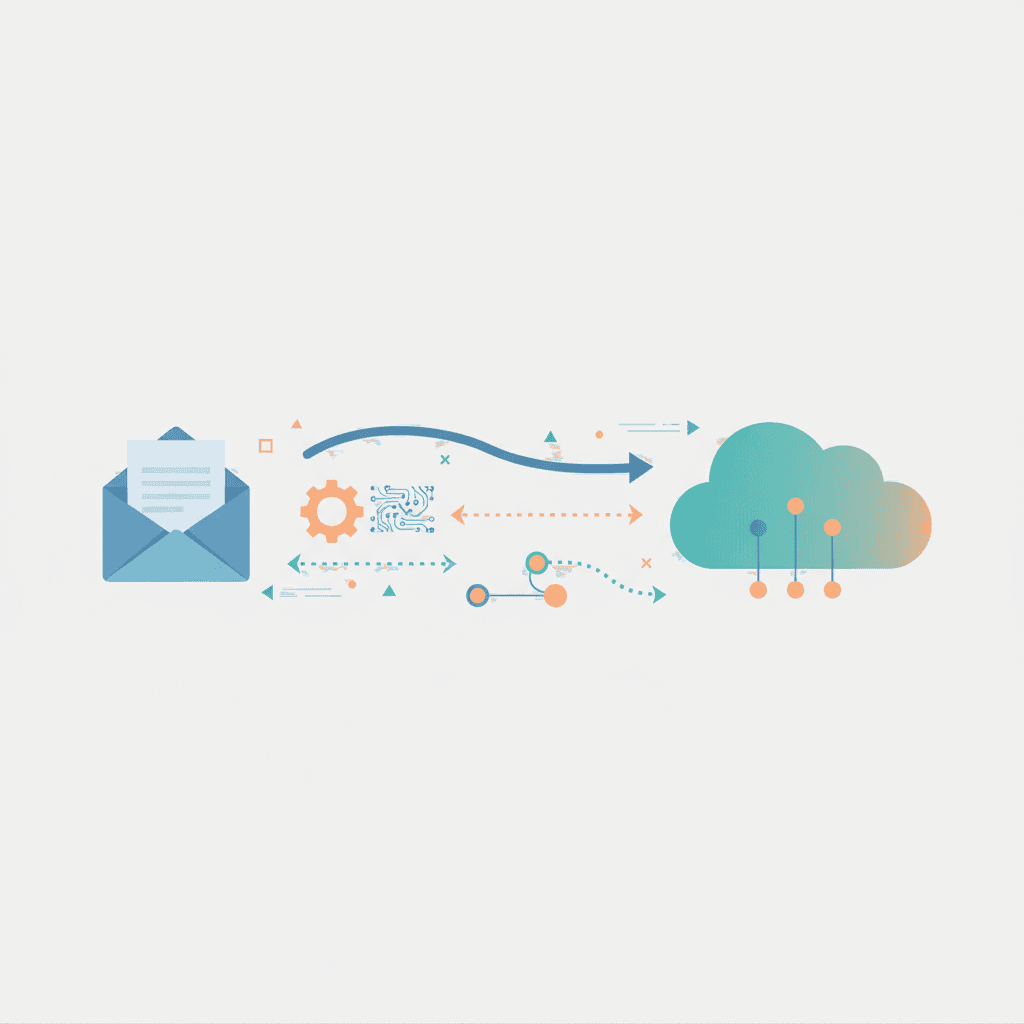
How to Automate Mailchimp with Zapier
Automate Mailchimp with Zapier by building simple Zaps that move data and trigger actions. First, sign in to Zapier and Mailchimp. Then connect both apps so they can communicate securely. Also, choose a trigger in Mailchimp or another app to start the workflow.
Step-by-step setup
- Create a new Zap in Zapier at https://zapier.com/apps/mailchimp/integrations
- Select a trigger app and event, for example new subscriber in Mailchimp.
- Connect your Mailchimp account and test the trigger to pull sample data.
- Add an action step, such as add row to Google Sheets or update a CRM record.
- Optionally add a filter step to process only specific subscribers.
- Add a delay step on paid plans when you need timed actions.
- Test the entire Zap and then turn it on.
Each step takes only minutes with templates. Because Zapier offers Zap templates, you avoid complex setup. As a result, you launch useful automations quickly.
Benefits of automating Mailchimp with Zapier
- Save time because repetitive tasks run automatically.
- Reduce errors while syncing subscriber data across systems.
- Scale outreach by repurposing campaigns into content quickly.
- Improve engagement by triggering targeted follow-ups after events.
- Maintain backups automatically in Google Sheets to protect lists.
Practical examples and tips
- Subscribe leads: When a lead fills a form, add them to Mailchimp automatically.
- Turn campaigns into content: When you publish a campaign, send the text to a CMS.
- Backup lists: Add every new subscriber to a Google Sheet for a secure backup.
- Event engagement: For example, add attendees from Google Calendar to a Mailchimp list.
- CRM sync: Keep CRM records updated instantly when subscribers change tags.
- Webhooks: Use Webhooks by Zapier to connect Mailchimp to almost any app.
Pro tip: add a filter step to avoid a Zap loop when you sync Mailchimp with your CRM in both directions. Also, Zapier Tables actions do not count toward task usage, which helps enterprise workflows. When you connect Zapier MCP to ChatGPT or Claude, you can perform 30,000+ actions from your chat interface.
Want faster content for emails? Try AI Writer, AI Article Wizard, and AI Bots https://app.allosai.com to generate subject lines and body copy. For more on Mailchimp integration, see https://mailchimp.com/integrations/zapier/.
| Feature or Benefit | Mailchimp Alone | Automate Mailchimp with Zapier |
|---|---|---|
| Automation capabilities | Built-in automations for broadcasts and simple journeys | Connects Mailchimp to thousands of apps for complex, cross-app automations |
| Ease of use | Easy for single platform tasks; built-in templates available | Easy with Zap templates; requires initial Zapier setup but saves time overall |
| Integration options | Native integrations with select apps and APIs | Vast integrations including Google, Salesforce, Microsoft, CRMs, and webhooks |
| Data sync and backups | Manual exports or native syncs | Automatic backups to Google Sheets or databases in real time |
| Campaign repurposing | Manual copy and paste to other platforms | Automatically send campaign content to CMS or social tools |
| Event and attendee engagement | Limited native event triggers | Triggered workflows from Google Calendar, event tools, and webhooks |
| Custom logic and filters | Basic segmenting and tags | Add filter steps, paths, and delays for advanced workflows |
| Task and cost management | Costs tied to Mailchimp plans and send volume | Zapier task usage applies; Zapier Tables actions may not count toward tasks |
| Error reduction and data accuracy | Prone to manual errors during transfer | Reduces errors with automated syncs and standardized mappings |
| Impact on marketing efficiency | Improves email sending and segmentation | Dramaically increases efficiency across marketing stack |
Common use cases and best practices for Mailchimp automation
Automate Mailchimp with Zapier in real-world scenarios to save time and reduce errors. Below are common use cases that teams use every day. Also included are best practices to keep workflows reliable and efficient.
Use cases
- Subscribe leads automatically: When a lead form submits, add the contact to a Mailchimp audience. This supports newsletter growth and list segmentation.
- Backup subscribers in Google Sheets: As a result, your list always has a secure, exportable copy for audits and reporting.
- CRM integration and sync: For example, when a subscriber updates tags, update the CRM record instantly. This improves data accuracy across systems.
- Event attendee engagement: When someone registers for an event, add them to an event-specific Mailchimp tag. Then send follow-ups after the event.
- Campaign repurposing: When a campaign sends, send the content to a CMS or to AI tools for repurposing into social posts.
- Webhooks for custom apps: Use Webhooks by Zapier to connect Mailchimp to nonstandard tools or internal systems.
Best practices
- Start with templates: Use Zap templates to launch common workflows quickly. Because templates are prebuilt, you save setup time.
- Add filters and paths: Use a filter step to process only the right subscribers. Also, use paths for multi-step logic and branching.
- Avoid Zap loops: Therefore, add conditions when syncing Mailchimp and your CRM in both directions. This prevents duplicate updates.
- Use delay step when needed: For timed follow-ups, use Zapier’s delay step on paid plans.
- Test with sample data: First test each Zap with real samples to confirm mappings and field formats.
- Monitor task usage: Keep an eye on Zapier tasks and optimize triggers to reduce unnecessary runs.
Finally, consider adding AI-powered content tools to speed copy creation. For example, integrate with AI Writer or ChatGPT via Zapier MCP for scalable email marketing automation.
Conclusion
Automate Mailchimp with Zapier and streamline your marketing stack. By connecting Mailchimp to Zapier, you remove manual steps, sync data across tools, and trigger timely follow-ups. As a result, teams save hours and reduce errors.
Use simple Zaps to subscribe leads, back up lists, repurpose campaigns, and sync CRMs. Also add filters, paths, and delays for precision. Test Zaps with real samples and monitor task usage to stay efficient.
For advanced automation and AI content, AllosAI offers intelligent content creation and workflow automation. It supports external chat support solutions, deep CRM integration, and tools for customer engagement. Therefore, teams can generate subject lines, draft email bodies, and route leads into CRM workflows faster.
Explore AllosAI resources to get started: AllosAI, app platform, and knowledge hub. Start small, iterate, and scale. Ultimately, combining Mailchimp, Zapier, and AI tools will boost marketing efficiency and free your team to focus on strategy.
Frequently Asked Questions (FAQs)
What does it mean to Automate Mailchimp with Zapier?
It means connecting Mailchimp to Zapier to run workflows automatically. Triggers start the workflow. Actions perform tasks like adding subscribers or updating CRMs. You build Zaps using Zap templates or from scratch. As a result, you remove manual repetition and scale faster.
How do I set up a basic Zap to add new subscribers?
First, log in to Zapier and Mailchimp. Next, create a new Zap and choose Mailchimp as the trigger app. Then select the trigger event, for example new subscriber. After that, add an action like Google Sheets add row or CRM update. Finally, test the Zap and turn it on. Also, use Zap templates to speed the setup.
How do I avoid duplicate updates or Zap loops?
Add filter steps to block unwanted runs. Also, use unique IDs like email addresses for matching. If you sync Mailchimp and a CRM both ways, add conditional filters. Therefore, you prevent infinite loops and duplicate records.
Will Zapier tasks increase my costs and how do I manage them?
Zapier counts each task when an action runs. However, Zapier Tables actions may not count toward task usage. Monitor task usage in your Zapier dashboard. To reduce tasks, refine triggers and add filters. For timed workflows, use delay steps only when needed.
Can I add AI content generation to Mailchimp workflows?
Yes. You can connect Zapier MCP to ChatGPT or Claude to generate subject lines and bodies. Also, integrate AI tools to repurpose campaign text into social posts. As a result, teams produce content faster and keep campaigns consistent.